Friday, March 30, 2018

Recent progress

The Load Pose button loads a pose from a file to the active character. However, it is not so simple as to just rotate bones with the rotations in the file, because bones in Blender are oriented differently from in Daz Studio. The reason is that for a Blender bone the local Y axis points in the bone direction, whereas nodes in Daz Studio can be oriented in any way.

For a long time I thought that I knew how to transfer Daz rotations to Blender, because my algorithm worked flawlessly for characters up to Genesis 3. Alas, when Genesis 8 came along last year, the algorithm did not work correctly. I don't know why it worked for Genesis 1-3, but I suspect that the bone axes coincide with the global coordinate system for those characters, and my old algorithm worked in that case.
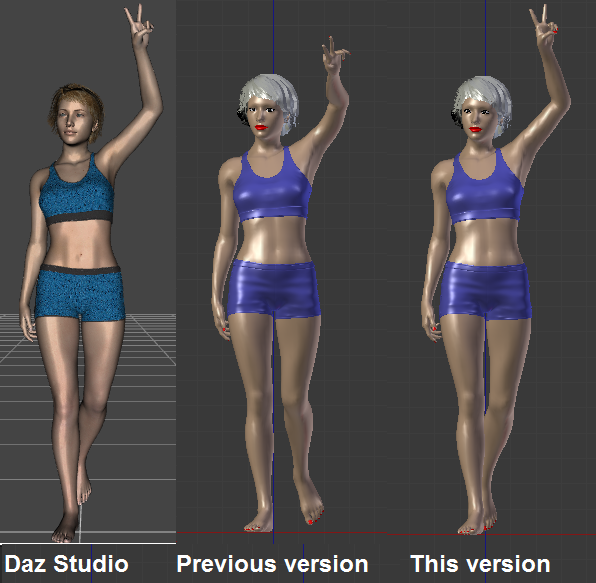

Anyway, the algorithm has now been updated, and the picture above shows the difference. Clearly the new version agrees better with Daz Studio than the previous one.

Once we have the correct correspondence between Daz and Blender poses, it becomes possible to translate bone drivers. This is useful for corrective shapekeys, known as Joint Corrective Morphs or JCM's in Daz Studio. A JCM is typically driven by a single Euler angle in Daz Studio, but due to the different bone orientations this corresponds to a mix of all three Euler angles in Blender.
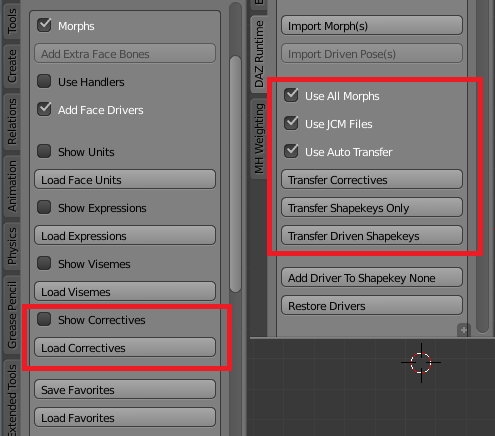


To easily load JCM's for a character, simply press the new Load Correctives button in the Morphs section. If you enable Show Correctives, a list of available correctives open up, and you can select which morphs to load. If the active character is of type Genesis 3 and 8, a long list of shapekeys are loaded, driven by bone rotations. Apparently there are no JCM's for the older character types.


This picture illustrates the difference. The difference is not huge, but corrective shapekeys make deformation better.

Corrective shapekeys make deformation better for the character mesh, but the clothes don't have any. This can be fixed by transferring the shapekeys from the human to her clothes. With the clothes selected and the character mesh active, press the Transfer Correctives button. The deformation clearly improves.


There are several buttons for morph transfer:
  • Transfer Correctives: Transfer shapekeys with bone drivers and their drivers.
  • Transfer Shapekeys Only: Transfer only shapekeys, don't make drivers.
  • Transfer Driven Shapekeys: Transfer shapekeys with property drivers and their drivers.
There are also some options that control how the morphs are transferred:
  • Use All Morphs: Transfer all shapekeys from the active mesh. The alternative is to only transfer the active shapekey.
  • Use JCM Files: Some vendors have made custom JCM files for their clothes. If such files are found, use them if this option is enabled.
  • Use Auto Transfer: If no custom JCM file is found, automatically transfer shapekeys. This is both slower and less good than with custom JCM files.
Everything is very new and may change without notice

Saturday, December 2, 2017

PBR shader

The DAZ Importer (development version) can now create Cycles materials using the Principled BSDF, also known as the PBR shader. Here the same car has been imported with Cycles with PBR, Cycles without PBR, and Blender Internal.


(Actually, lightning was made differently in BI. The Cycles renders were lit by an environment map, the BI render was lit by two lamps and composited upon the background.)

The PBR shader makes a huge difference for materials like metals and glass. For characters the improvement is not so clear compared to standard Cycles. Here is the default Genesis 3 Female imported in three ways.


And here is a Genesis 8 character. The PBR variant developed some nasty white spots, e.g. on the neck, which is clearly visible even after denoising. In both Cycles renders the shadow on her cheek is also very jagged. Probably it comes from the hair mesh.


To enable the PBR shader, select the Principled Shader option in the Materials And Textures section of the Settings panel. This is still quite unstable and the option may move in the near future, e.g. to the import options.

Monday, November 27, 2017

Hair deformation with surface modifier

In the previous post hair was animated with bones. This works well if the hair only has few degrees of freedom, like a pony-tail. However, for long, loose hair it becomes very tedious to animate the hair by hand. It would be much simpler to do a cloth simulation, but we all know that this becomes extremely slow for high-poly meshes.

In version 2.79, Blender has a new Surface Deform modifier, which can be used to speed up hair simulation. I created a low-poly hair guide and made a cloth simulation for it. The simulation is fast because the guide is a low-poly mesh. The animation was then transferred to the high-poly hair mesh using the surface deform modifier. The modifier is a bit picky; it does not work if the guide mesh contains concave faces, and the hair tends to develop spikes unless the guide is very smooth. By splitting the faces to triangles and smoothing the mesh I managed to get rid of the most glaring problems.

Here is a video that shows my take on it.

Saturday, November 25, 2017

Winders

This blog has been in a dormant state for a while. There are several reasons for this, one of these was that I started to get tired of the DAZ Importer and on CG in general. However, for the last month or so I started to take up Blender again, learning about the many of the awesome new features, e.g. denoising, HDRI images, shadow planes, and the surface deform modifier. It is also time to actually do something with the DAZ Importer and not just implementing it.

The topic of today's post is something I call winders. Long and flexible objects, such as chains, ropes, whips, or ponytails, often have armatures consisting of many small bones, one for each link. Posing each individual link is tedious, and it is often difficult to get a smooth curve.

Enter winders. A winder is a single bone that stretches along the entire chain, and by rotating the winder you can easily pose all links in the chain in a smooth fashion. Under the hood, a winder is implemented by Copy Rotation constraints with offset enabled. This means that once you have posed the winder, the individual links can be posed on top of that. In fact, there are two examples of winders in the MHX rig: the long fingers that pose the three finger links, and the back bone that poses the entire spine.

 To illustrate the feature, here is a model of Lara Croft (I think). The rig has been converted to MHX and we see the hair bones on the Clothes layer. The ponytail and the hair strands at her forehead are suitable examples of chains to which we can add a winder.


With the first bone in the ponytail selected, press Add Winder in the Rigging section of the Advanced Setup panel.


A winder bone is created, and the bones in the ponytail chain gets some constraints. The entire ponytail can now be easily posed with the winder bone.


And here is a short video where the ponytail and hair strands have been animated with winders.

Thursday, September 14, 2017

Finally, version 1.2 released

There have been some bug fixes since the latest release candidate. Most importantly, the DAZ Importer has been much better at handling older DAZ files that do not follow the conventions in more modern ones. Stable version 1.2 of the DAZ Importer can be downloaded from:

https://www.dropbox.com/s/jx15t3inlvtd98x/import-daz-v1.2-20170913.zip.

There will be no further bugfixes in version 1.2, because in the next few days I plan to make some major revisions in the code base which may introduce new bugs. In particular, the code that builds Blender objects can be simplified. The complexity was necessary to handle the automatic mesh fitting in version 1.1, but since that feature has now been removed (it never really worked), the code can be made simpler.

Friday, August 18, 2017

New release candidate

A new release candidate for version 1.2 of the DAZ importer can be downloaded from https://www.dropbox.com/s/x1tkb0khjycq251/import-daz-v1.2-20170818.zip. There are two improvements compared to the previous RC:
  1. I learned that you can import Poser files into DAZ studio and save them as DAZ files, which can then be imported into Blender. However, these files are slightly different from the native DAZ files, and they caused some errors in the import scripts. These bugs should now be ironed out.
  2. The Rigify add-on was changed in Blender 2.79, which caused Rigify conversion of DAZ armatures to stop working. The new RC should work with both old and new Rigify.

Poser import

Here is how to get a Poser file into Blender. Start by importing the file into DAZ Studio.

Select File > Import

and navigate to the Poser file (.cr2, .pz2, ...). Repeat this step to add clothes, hair, etc.


Apparently the clothes fitting is not perfect.

We could save the character as a DAZ file now, but then we would not be able to pose her in Blender, because Poser figures are skinned with envelopes whereas the DAZ importer only handles vertex groups. Fortunately, we can convert to vertex groups in DAZ Studio.

Select Figure > Rigging > Convert Figure to Weight Mapping.

We get to choose between TriAx and General Weight Mapping. This choice is not terribly important, because TriAx will be converted to general weights in Blender anyway, but General is probably the best choice. here.

This step has to be repeated for every figure in the scene, i.e. for each piece of clothing.

Finally we export the final world-space coordinates to a .json file using the basic data exporter that comes with the DAZ importer. See the blog post on JSON fitting for details.

Now we can import the Poser character just as any other DAZ file. In my example there were a lot of extra nodes that correspond to empties in Blender, but it is easy to get rid of those. Just select the empties by type and delete them.


Rigify

The Rigify add-on was changed in Blender 2.79. I am sure that this is a great improvement, but the update had the side-effect that Convert To Rigify button in the DAZ importer was broken. Should be fixed now.

The meta-rigs are clearly different.

So are the rigified versions of the same DAZ Rig.

The new Rigify has a face rig, but the DAZ importer ignores that. DAZ characters already have a great way to do facial posing, with carefully crafted facial morphs or a carefully weighted face rig, and there is no simple way to map that to the Rigify face rig. The face bones in the rigified character appear on the otherwise unused bone layer 2.


Sunday, August 6, 2017

DAZ Importer version 1.2

The DAZ importer is a tool for importing native DAZ Studio files (DAZ User File *.duf, DAZ System File *.dsf) into Blender. It also contains some tools to make the assets more animation friendly.

Release candidate 2: https://www.dropbox.com/s/x1tkb0khjycq251/import-daz-v1.2-20170818.zip
Main documentation page: http://diffeomorphic.blogspot.se/p/daz-importer-version-12.html

Since the previous stable version was released half a year ago there has been several improvements and additions.
  • A DAZ Studio plug-in for exporting the final world space coordinates for vertices and bones.
  • Limits on the number of facial expressions overcome, using handlers for bone drivers.
  • Material improvements, in particular for Cycles.
  • Posing improvements.
  • Many small bugfixes and additional features.
The most signicant improvement is the DAZ Studio plug-in. In previous versions Wavefront or Collada files could be used to find the final meshes with all morphs included, but this did not always work correctly. In version 1.1 I also attempted to deduce the final locations directly from the DAZ Studio files. While this in theory must be possible (after all, DAZ Studio does it), I never got it to work right, especially not fitting clothes to arbitrary morphed meshes. After I started to use the DAZ Studio plug-in to export the final world-space coordinates, meshes have always looked the same in Blender as in DAZ Studio.

The script has mainly been tested with DAZ Studio 4.9 and Blender 2.78c on Windows 7.