Sunday, March 31, 2019

AutoFace - How It Works

The core of AutoFace is the 3DMM face identity shape network described in

A. Tran, T. Hassner, I. Masi, G. Medioni, "Regressing Robust and Discriminative 3D Morphable Models with a very Deep Neural Network", in CVPR, 2017. The preprint version is available as arXiv:1612.04904 [cs.CV].

Code for this has generously been made available at Github, https://github.com/fengju514/Expression-Net.

The Expression-Net script analyzes a single input image and outputs a 3D shape in the form of weights for a set of 99 morphs labelled 00 to 98. The location of a mesh vertex is


The Expression-Net script also describes the 99 morphs, but only for a modified Basel Face Model (BFM), which appears to be popular among AI researchers. The BFM is a high-density face mesh, and as such rather unusable for artists, who prefer a medium-density full body mesh, which is rigged and textured. A key contribution of AutoFace is to translate the morphs from the modified BFM into shapekeys for two useful meshes, the Genesis 8 Male and Female characters used in DAZ Studio.

The pictures below show the first few morphs, for the modified BFM, Genesis 8 Male, and Genesis 8 Female. First the original meshes with no shapekeys applied.

Basic shapes - unmorphed meshes


Shapekey 00
Shapekey 01
Shapekey 02
Shapekey 03
Shapekey 04
Shapekey 05
Shapekey 06
A number of comments are in order.
  • The shapekeys in AutoFace are ten times stronger than the original ones, and hence the coefficients must be reduced by the same factor of ten. The reason is that higher shapekeys are quite subtle and difficult to detect.
  • The Genesis shapekeys taper off near the boundary of the BFM, in order to avoid a sharp transition to the rest of the head mesh. In particular a fattened jawline, such as the one in shapekey 00, is not transferred correctly. This problem may be affecting the example with president Trump.
  • They eyes, including the skin behind the eyes, are not morphed. Instead the eye vertices are scaled and translated based on the movement of the corners of the eyes. This ensures that the eyes remain round, which is desirable when posing.
  • Similarly, the inside of the mouth is scaled based on the movement of the corners of the mouth, in order to ensure that the jaws and teeth remain inside the face.
  • The shapekeys shown in this post are more or less symmetric. Higher shapekeys are less pronounced, and some of them are asymmetric.
As always, something is lost in translation, so it would be better if the deep network were trained directly for the Genesis 8 meshes. Or for subdivided versions of them. They high-frequency data could then be converted into a normal map. Alas, I neither have the competence, computer resources nor the training data to do this.


Saturday, March 30, 2019

AutoFace - Create Rigged and Textured Character from a Single Photograph

During the last month I have been working on an old idea: a collection of scripts that creates a rigged and textured character from a single photograph. Today I am proud to announce the result: AutoFace. The scripts are usable, although not completely finished and the results are not perfect.

AutoFace documentation is found at http://diffeomorphic.blogspot.com/p/autoface.html.

A zip file can be downloaded from https://bitbucket.org/Diffeomorphic/autoface/downloads/.

Or if you prefer to clone the Mercurial repository: https://bitbucket.org/Diffeomorphic/autoface.

AutoFace uses quite a large number of external libraries, listed in the Prerequisites https://diffeomorphic.blogspot.com/p/prerequisites-1.html.


At the core of AutoFace is a deep convolutional neural network model and python code for robust estimation of the 3DMM face identity shape networks, directly from an unconstrained face image and without the use of face landmark detectors. The method is described in

A. Tran, T. Hassner, I. Masi, G. Medioni, "Regressing Robust and Discriminative 3D Morphable Models with a very Deep Neural Network", in CVPR, 2017. The preprint version is available as arXiv:1612.04904 [cs.CV].

Code from this project has been generously shared on Github: https://github.com/fengju514/Expression-Net. That site also contains code for estimating expressions and face poses, but AutoFace does not yet make use of this data.

Whereas the Expression-Net script does the job of recreating the 3D face from a photograph, the output is not really useful for the practising artist. The script outputs morphs for a modified Basel Face Model (BFM), which seems to be a favorite among AI researchers. The BFM is a high-density face mesh, but in practise we want a medium-density full body mesh, which is rigged and textured.

The goal of AutoFace is to transfer the output from the BFM to useful meshes, in particular the Genesis 8 Male and Female characters used in DAZ Studio. After the morphs have been transferred, we can load the characters into DAZ Studio and add hair, clothes and body morphs. The dressed characters can then be used in DAZ Studio or exported to other application. I personally use the DAZ importer to import the characters into Blender, where they can be posed and rendered.


The pictures below show some results for images of two beloved candidates of the 2016 US presidential election. This images are included in Autoface.

Input images, with landmarks detected by Dlib.
Basel Face Model
Genesis 8 Male and Female
Textures
Rendered
Clothes, hair and body morphs added in DAZ Studio.
Imported into Blender, posed and rendered.
As you can immediately tell from these images, the results are not perfect. The obvious flaw is that the characters look far too young. A possible workaround could be to add some aging morphs in DAZ Studio, although it is not satisfactory.

For best results we should start with a frontal photograph of a face in neutral position. The picture of secretary Clinton shows why. The deep network removes the smile from the 3D mesh, but it still lingers in the texture, in particular in the artifacts around the cheeks.


Friday, February 15, 2019

Loading morphs after anatomy has been merged.

You can load shapekeys to a mesh with the Import Morph(s) button. However, this only works as long as the mesh is intact, because morphs are stored as pairs of vertex numbers and offsets. If you change the mesh in any way, e.g. by merging anatomy or joining eyelashes to a Genesis 8 character, or if you delete or add any vertices manually, the vertex numbers are corrupted and the morphs can not be loaded. If you have spent a lot of time finishing your character, and then realize that you need to import another morph, what to do?

Fortunately, user engetudouiti came up with a clever trick for loading morphs to a merged character, using the plugin's ability to transfer shapekeys between meshes. This feature was originally intended for transferring corrective shapekeys from a character to her clothes, but here we use it backwards, and transfer shapekeys from a smaller mesh to the merged character.

Here is the recipe:

1. Import the character again on a new layer.
2. Delete all objects on this layer, except for those that you want to import morphs to.
3. Parent these meshes to the original armature. This step is necessary only if you use rig properties to drive the shapekeys, because the drivers look for the parents.
4. Import the morph to the new character or anatomy. This can now be done because it has the correct number of vertices.
5. Select the vertices of the merged mesh that are affected by the morphs.
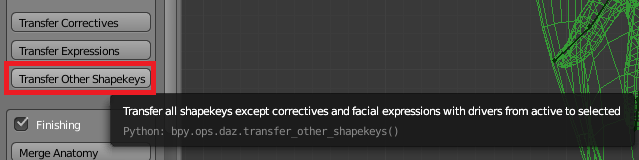
6. With the merged character selected and the mesh with morphs active, press Transfer Other Shapekeys in the Morphs section.
7. Make sure that Selected Verts Only and Ignore Rigidity Groups are selected.
8. Delete the mesh with morphs.


The selection in step 5 is necessary because we transfer shapekeys from a small mesh to a bigger one, and we don't want vertices outside the small mesh's domain to be affected. Unfortunately, this step requires some manual work. This could have been avoided if you had created vertex groups containing the graft information before merging the meshes. If not, you must make the selection manually.

Here is how you would create the vertex groups:


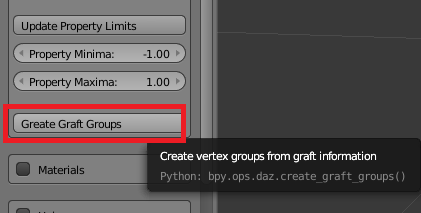
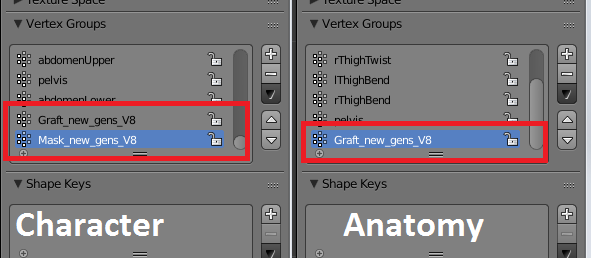
With the character selected and the anatomy active, press Create Graft Groups in the Morphs section of the Advanced Setup panel. This creates two vertex groups for the character mesh: Graft_xxx and Mask_xxx, and one vertex group for the anatomy: Graft_xxx. Here xxx is the name of the anatomy mesh (not the object). After the anatomy has been merged with the character, the Graft_xxx vertex group consists of the vertices at the boundary of the anatomy. The vertices inside the boundary are those that should be affected by the morph and hence selected when the morphs are transferred.


Wednesday, November 7, 2018

Blender 2.80

The development version now runs on Blender 2.80. Or at least it runs on the version of Blender 2.80 that I downloaded a few days ago. There are still some issues, but most features seems to work as they do in Blender 2.79.

The most obvious difference is that the DAZ tab has moved from the T-shelf on the left of the viewport to the N-shelf on the right side. Not sure why add-ons cannot define tabs in the Tools shelf anymore, but so it is. Here is the same character imported into Blender 2.79 and Blender 2.80:

Blender 2.79


Blender 2.80
The development version can be downloaded from https://bitbucket.org/Diffeomorphic/import-daz.

The same changes have also been implemented on two of my other add-ons:
MakeWalk: https://bitbucket.org/Diffeomorphic/makewalk
MHX 2 importer: https://bitbucket.org/Diffeomorphic/mhx2-makehuman-exchange
Those add-ons are not really supported anymore, but at least the basic features now work under Blender 2.80.

Tuesday, October 16, 2018

Stable version 1.3.1

Originally I planned to wait with the next release until after Blender 2.80 was available. However, since the development version is so much better than version 1.3, especially when it comes to materials, I decided to make a new stable release, version 1.3.1. It can be downloaded from https://www.dropbox.com/s/0tfwk7v82116nt3/import-daz-v1.3.1-20181016.zip

The progress on materials, which I have already written about here, are due to many helpful bug reports by users engetudouiti and Alessandro Padovani. As I myself have a very limited understanding of Iray materials, and am not very good at Cycles either, these improvements could not have happened without their help.

The documentation has not been updated since version 1.3. The current user interface differs slightly from the one described in the documentation, but hopefully this should not cause serious problems. When you import a Daz file, the materials section in the import options now looks like this:
For opaque materials there are two options, depending on whether we want to use the principled node or not. For refractive materials there are three more options: the Guess option is good for eyes, and the Custom Shader is a quite complex node setup that should mimic refractive Iray materials very closely. Finally, the Environment checkbox allows us to import environment maps from Daz Studio. This is useful if you want to import complete Daz scenes, less so if you use Daz Studio as a character generator.

When the add-on is enabled, there is a warning message in the terminal: "Warning: This script was written Blender version 2.80.0 and might not function (correctly), though it is enabled". This is normal and nothing to worry about. The goal is that the future version 1.4 should run on both Blender 2.79 and 2.80, and as a first step in this direction the Blender version has been changed to 2.80.


Thursday, July 19, 2018

scimeter.org

Bee reports about a new tool for arXiv users that she helped to create: Scimeter. Having been stuck for a decade and not really on speaking terms with the arXiv moderators, I haven't thought much about physics for the last decade, but here is the cloud that it produces for my arXiv papers:

 
 Couldn't have made it better myself.

Monday, July 16, 2018

Shells and Layered Images

In Daz Studio, a shell is a mesh with zero vertices that is used to add features to the materials of the base mesh. It can be used e.g. for makeup, tattoos and wounds. Shells are also used by Genesis 8 genitals to add color and effects without having to modify the torso material.

Importing the shells directly into Blender makes no sense, because they are empty meshes that don't show up in renders. Instead the Daz Importer uses the information in the shell materials to modify the materials of the base mesh. Here is an example where two bruises have been added to the face and one bruise has been added to the lips:
 The principled face material looks like this:
 The bruise textures are added to the face material inside the node group:
 This node group contains some redundant nodes, which hopefully will go away soon.

 A different way to add layers is to use the Layered Image Editor (LIE) in Daz Studio. Here we have added three small textures to the face texture.
After importing to Blender, the face looks like this. There was also added an extra texture to the lips material.
And here is the node group that computes the diffuse texture. The textures are placed using mapping nodes.