Friday, February 3, 2023

Unsupported Shaders and Unused Textures

The DAZ Importer fully supports three shaders: Iray Uber, 4-Layer Uber PBR MDL, and PBRSkin. Other shaders are only partially supported or not at all. Sometimes the result with an unsupported shader can be improved by applying the Iray Uber shader in DAZ Studio, but there are no guarantees. Normally we have to tweak the nodes in Blender to obtain the effect we want. However, to do so we often need textures that only affect the unsupported channels. In the last version of the DAZ Importer we can import such textures, even if they are not used by any nodes in Blender.

As an example, consider this character with wet and tanned skin. We will focus on the tan lines which depend on a texture.
In the Surfaces tab we see that the materials have a non-standard shader, which is not supported by the DAZ Importer. The Torso mateial has a section called Tan Lines, which contains many channels that the plugin does not recognize. The important point is that some of these channels have textures that are needed to recreate the effect in Blender.
When we import the scene to Blender we get a warning about an unsupported or partially supported shader. There is in fact some support for the DAZ Brick shader, but only for brick layers, which is not what we have here.
And when the scene is imported into Blender, all traces of the tan lines are gone.
To recreate the tan lines, we must first make sure that all relevant textures are imported. Enable the global setting Build Unused Textures and import the scene again.
Now there are new texture nodes at the right side of the node tree, together with an empty node group to indicate which channels the textures are assigned to.
The next step is to make the skin look tanned. To this end we launch the Material Editor so we can edit all skin materials at once.The simplest way is to turn down the value of the base color of the principled node.
The character is now tanned, but over the entire body; still no tan lines.
Next we go into the node editor for the Torso material. The node group to the left will be used as a mask. The other node group, whose only purpose is to display the affected channels, can be deleted to clean up the node tree.
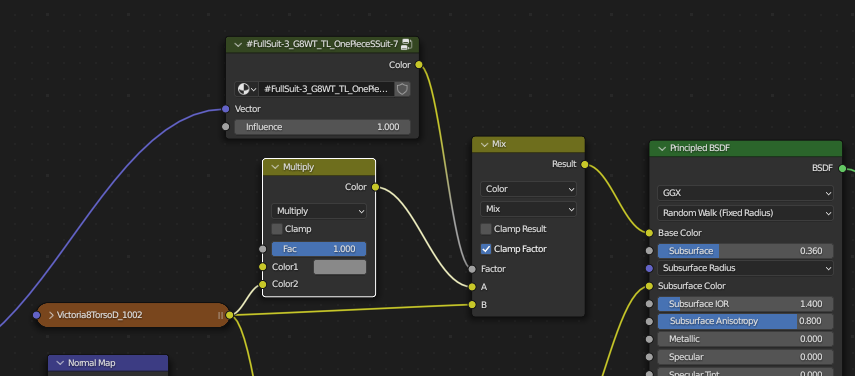
Here are the nodes that affect the base color: the original texture and the multiply node that creates the tan effect.
Add a mix node that mixes the tanned skin and the original skin, using the tan lines texture as the mixing factor.
And here is the skin with tan lines.

The other materials still contain unused textures and node groups. To remove them and keep the node trees tidy we can use Advanced Setup > Materials > Prune Node Trees with Keep Unused Textures disabled.


Saturday, January 14, 2023

USING PRE-BENDED FIGURES (ALSO WORKS FOR G1 G2)

One common issue for daz figures is they require literally hundreds of morphs to get the figure working. Plus jcms don’t work anyway with G1 G2 figures that use triax instead, not supported by blender.

Now to help with this we may use a old trick that’s exporting prebended figures. This way we bake some main deformations from daz, then we may also use a corrective smooth modifier to help preserving the volume and shape of the baked deformations. As a side effect this also works better with ik that likes prebended limbs. And exports better to game engines. As a downside effect this will not work to import daz poses since the rest pose is changed this way. So it’s only good for original blender animation.

Below it's an example with G8F, the deformations are not bad considering no jcms are used at all. This technique works fine with G1 G2 too.


Please note that the prebending may depend both on the figure and the outfit. In general a nude figure can be more prebended than a dressed figure, and a dressed figure may require more or less prebending depending on the outfit.

The general steps are:

  1. In daz studio we prebend the figure as required depending on the figure and the outfit.
  2. If it is a G1 G2 figure then we add the general weight maps: edit > figure > rigging > convert to blended weight.
  3. Export to blender as dbz.
  4. In blender we add the corrective smooth modifier to the figure.
  5. In blender we merge the outfit parts and add a shrinkwrap modifier to the outfit.

Below an example with G1F and the magus outfit. I prebended the elbows and knees and a little shoulder, but left everything else alone to avoid distortions on the magus outfit. Then I converted to general weight and exported the dbz. Back in blender I added the corrective smooth to the figure and shrinkwrapped the outfit.

Please note that I uncheked "preserve volume" in the armature, since G1 doesn't use jcms and the corrective smooth is responsible alone to preserve the volume and prebended shape.

Overall the magus figure works fine enough and doesn't use any corrective morph.


note. important. The corrective smooth tends to preserve the original shape, so it’s good for body deformations and outfits. But not for face expressions since it tends to diminish the expression itself, so we may want to use a face mask for the corrective smooth.

Please see the depository for test files.

https://bitbucket.org/Diffeomorphic/import_daz/issues/994/


update. March 16 2023

Thomas did a great job with the last commit. It is now possible to import daz poses on prebended figures so we can avoid jcms and still be compatible with the daz poses. To do this you have to enable the global option "Daz Orientation" and check "Subtract Rest Pose" in the import pose panel.


Beware that "Daz Orientation" is experimental and actually uses some heuristic to be compatible with the old system. The only risk though is that some poses may not import completely fine, so you can use the option it won't break anything.

The intended workflow is to only use "Daz Orientation" if you work with prebended figures, otherwise the old system works better for now.

https://bitbucket.org/Diffeomorphic/import_daz/issues/1445/


update. May 5 2023

Since "Daz Orientation" doesn't work fine is now removed, together with "subtract rest pose". There is instead a new tool "copy absolute pose" which will copy a pose between two figures having a different rest pose, that we can use for prebended figures too.

runtime > posing > copy absolute pose


update. Apr 10 2025

In version 4.4 of the addon "copy absolute pose" is removed in favor of "copy pose" which works for both posed and non-posed figures.

setup > corrections > copy pose

Sunday, January 8, 2023

Adding an Armature to Mesh Hair

Hair meshes in DAZ Studio often lack bones that allow them to be posed, and even if hair bones exist they can only be posed in very limited ways. To remedy this I have spent some days implementing a tool for automatically adding hair bones that can be used to pose the hair mesh.

Select the hair mesh and press the Add Hair Rig button at the bottom of the Hair section. New hair bones are created for the parent armature, and vertex weights are assigned to the hair vertices. For details see the Add Hair Rig page in the new documentation


Friday, December 23, 2022

Combining Multiple Geografts and Shells

Shells, also know as geometry shells or geoshells, add color and other properties to the materials of a character. A single shell seldom causes problems, but if we mix multiple shells they can interact with each other in undesired ways. This post describes some shell problems and how to fix them.

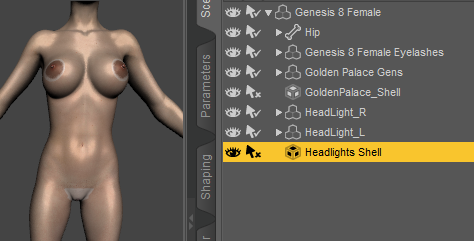
Here we have a female character with geograft genitals and nipples, together with the corresponding shells that add color to the geografts. The genitals and the outer parts of the nipples are paler than the surrounding skin because the two shells influence more materials than they should.

Select the Headlights Shell and go to the Parameters tab. In the Shell section, select Surfaces. The shell is enabled on the Torso and Nipples materials, which is correct. However, it is also enabled on the genitals materials, which doesn't make sense. Turn off the Headlights Shell on the five Golden Palace materials.

Then select the Golden Palace Shell and turn off the two nipples materials. The shells now only affect the materials that they should, and the pale areas are gone.

Next we add another shell for Tears Makeup. The headlights and genitals turn pale again. To fix this we select the tears shell and turn it off for the nipple and genitals materials.

Finally we add a shell to make the body look as if it is oiled, and the nipples and genitals turn pale yet again. However, this time we cannot disable the shell for the geograft materials, because we want the geografts to look oily as well. If we turn off the shell for those materials, the nipples and genitals would be surrounded by a dry area in an otherwise oiled body, which would look very strange.

I don't know how to solve this problem in DAZ Studio, so we leave it to the Blender side.

Here we have imported the character into Blender. The nipples are surrounded by pale rings that come from the oily shell. The genitals are also pale.

If the nipples are solid white, it means that some other shell is also active. Perhaps you forgot to turn off the tears shell on the nipple materials.

In the shader nodes editor, select the left nipple material (called Nipples-2). To the right of the node tree, just before the material output node, there are node groups that correspond to the material shells in DAZ Studio. The Oiled Full Body node has a node group call Oiled Full Body_GP_Torso-1. Replace this node group with the node group for the torso, i.e. Oiled Full Body_Torso-5.

Repeat the procedure for all genitals and nipples materials.

The pale areas are now gone.
The tears makeup is a bit pale compared to DAZ Studio. We can darken the mascara by increasing the Influence slider. Or if the lady isn't sad all the time, we can turn off the dripping mascara by setting the influence to zero.

We can increase the oilyness in the same way, or make the skin look dry by turning down the oily shell influence to zero. However, this becomes quite cumbersome since there are many materials that have the oily shell group, and the change has to be made to all of them. Fortunately, there is a way to change the influence for all materials at once.

When a mesh with shell groups is selected, there is a new panel called Visibility. The Set Shell Visibility button opens a dialog with a list of all shells and their influence. We see that influence of the Tears makeup shell is three, due to the change that we made above. We can now change the value of the Oiled Full Body slider to increase or decrease the influence of the shell for all materials at once.


Friday, November 25, 2022

Safely Installing a New Version

When you install a new version of the DAZ Importer it is necessary to remove old versions first and make a clean install, otherwise old files may remain and cause errors when installing the add-on. The problem arises when the new version has either removed or added files. E.g., version 1.6.2 removed globvars.py and added store.py, so those files may cause problems unless you install the add-on cleanly.

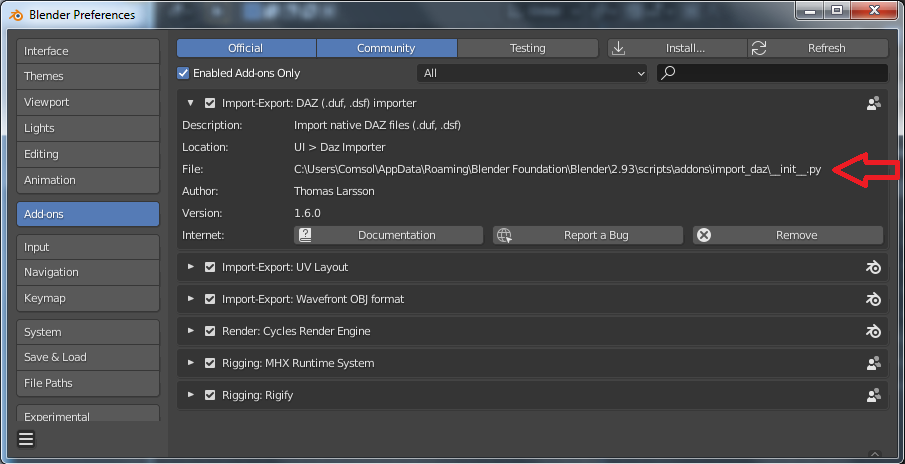
Open the Blender preferences window and go to the Addons section. The File: entry shows where the add-ons are installed. In my case the directory is

C:\Users\Comsol\AppData\Roaming\Blender Foundation\2.93\scripts\addons.

Disable the DAZ Importer and MHX RTS add-ons. To install the new version from a zip file, the natural next step would be to press the Install button and to navigate to the zip file which contains the new version.

 However, this does not work unless the old and new versions contain exactly the same files! The exact error message seems to vary, in my case I got the following message and the new versions were not installed:

Traceback (most recent call last):
  File "d:\home\blenders\blender-2.93\2.93\scripts\startup\bl_operators\userpref.py", line 668, in execute
    file_to_extract.extractall(path_addons)
  File "d:\home\blenders\blender-2.93\2.93\python\lib\zipfile.py", line 1633, in extractall
    self._extract_member(zipinfo, path, pwd)
  File "d:\home\blenders\blender-2.93\2.93\python\lib\zipfile.py", line 1687, in _extract_member
    open(targetpath, "wb") as target:
PermissionError: [Errno 13] Permission denied: 'C:\\Users\\Comsol\\AppData\\Roaming\\Blender Foundation\\Blender\\2.93\\scripts\\addons\\mhx_rts\\animation.py'

Instead we must take make some extra steps to ensure that the new version can be added cleanly. First quit Blender.

In Windows, navigate to the location of the add-ons recorded above. Delete all folders that will be reinstalled, i.e. import_daz and mhx_rts. It is not necessary to remove the daz_hd_morphs folder, because Xin's HD morph plugin is no longer bundled with the DAZ Importer.

Now the old folders are deleted and we can proceed to make a clean install.

Restart Blender and open the Preferences window. Now we can safely press the Install button.

Select the zip file containing the latest version of the add-ons.
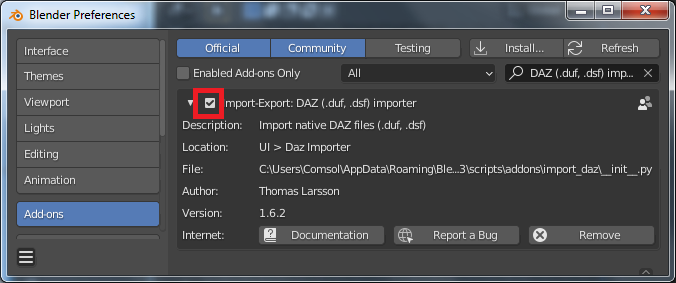
Now the new versions should not cause problems anymore. The release contains two add-ons, so the first one shows up. Enable the DAZ Importer.

Then type "mhx" in the search field and enable the MHX Runtime System if you want to.


Summary

  1. Disable the add-ons.
  2. Quit Blender.
  3. Erase the old add-ons from disk.
  4. Start Blender.
  5. Install the new add-ons from the zip file.
  6. Enable the add-ons.

Sunday, November 20, 2022

Version 1.6.2 of DAZ Importer and MHX Runtime System Released

Almost a year has past since stable version 1.6.1 was released, and it is now seriously outdated. Today the new stable version 1.6.2 is released. This is merely a snapshot of the current state of the development version. Apart from lots of bug-fixes, the new version has support from Genesis 9. It can be downloaded from

https://www.dropbox.com/s/yq8g3biao9xuf3i/import_daz_mhx_rts_v1_6_2.zip 

The documentation has not been updated for this release. In a few months I will hopefully release version 1.7 with updated documentation. In the same time the documentation will move to the Bitbucket wikis associated with the add-ons. The new documentation locations will be

https://bitbucket.org/Diffeomorphic/import_daz/wiki/Home

Work on the wikis has commenced but it is still at a very early stage.

Midnight Arrow suggested to move the documentation into a wiki to make it searchable. It is not clear to me if relocating to Bitbucket will achieve this goal, but it has several other advantages that are important to myself:

  • Easier to achieve a consistent look and feel.
  • Faster editing.
  • Better backup since the wiki is a git repo.

Also, putting the documentation at the same place as the code feels natural. There is little point in reinventing the wheel when somebody else already has done it.

Tuesday, November 1, 2022

Checking Mesh Size in DAZ Studio

Some DAZ meshes have way too many vertices. Dealing with such huge meshes can be very time-consuming, and I personally avoid the biggest meshes. However, it not so easy to judge the size of a mesh in DAZ Studio. My own method has been to export the character to Blender. If exporting takes a long time, the scene contains some large mesh. Then I replace the large mesh, which usually is the hair, with something else.

However, it is a waste of time to wait a minute for the export script to finish, when all I want to do is to check the mesh sizes. Now there is a new script which displays the mesh sizes without actually doing anything else. The script is call Mesh Stat and is located in the Diffeomorphic script folder.

If you run the Setup Menus script Mesh Statistics becomes a new entry in the File menu.
My scene consists of a Genesis 8 Female with the Basic Wear outfit and Toulouse hair. The script displays a message box with a list of the meshes in the scene. For each mesh the number of vertices, edges, faces, and polylines are shown. The Export To Blender script will only export the base meshes, whereas the Export HD To Blender script exports both the HD and base meshes.

We see that the Toulouse hair has 35228 vertices. Exporting the scene to Blender took 2.308 seconds.

Now I replaced the Toulouse hair with Monica hair. It has 206277 vertices, i.e. almost six times as many as Toulouse hair, and the export time increased to 6.564 seconds. Still quite manageable.

Then I replaced the hair again, this time to Joy hair. It is a polyline hair, so the number of edges and faces is zero, whereas the number of polylines is 75758. But what is important is that the number of vertices is a whopping 1269892, i.e. 36 times bigger than Toulouse hair. As a consequence, the export time increases to 38.381 seconds.

In short, the Mesh Statistics script is a quick way to check the size of the meshes in your scene, and avoid the worst time thiefs.