Wednesday, July 15, 2020

More on scripting

Updated October 10, 2021: There are some changes in the scripting interface in version 1.6.0 of the DAZ Importer. See Scripting for version 1.6 for details.


Updated July 15, 2020: setFilePaths replaced by setSelection. Added code for transferring and removing morphs.


Recently we discussed how to import a Daz scene and merge rigs from Python, but we did not attempt to import morphs to the new character. Afterwards I realized that doing so does not work at all. The problem is that the operators which import multiple files use a collection property, and specifying collection properties from Python seems impossible. At least I did not figure out how to do it.

Instead the problem is solved in a different way in the development version: with a global variable. Whenever the UI creates a file selector that generates multiple inputs, we need to call the function

import_daz.setSelection(list_of_filepaths)

before calling the operator. This function sets the global variable from which the filepaths are taken.

So let us write a script that imports various things from Python. We start by importing the relevant modules and settings up the root path. 

import os
import bpy
import import_daz
rootpath = os.path.expanduser("~/Documents/DAZ 3D/Studio/My Library")


With the character rig or mesh active, we next import three morphs that close the eyes

headpath = "/data/DAZ 3D/Genesis 8/Female/Morphs/DAZ 3D/Base Pose Head/"
folder = rootpath + headpath
files = ["eCTRLEyesClosed.dsf", "eCTRLEyesClosedL.dsf", "eCTRLEyesClosedR.dsf"]
paths = [folder+file for file in files]
import_daz.
setSelection(paths)
bpy.ops.daz.import_units()

If we have invoked the operator with the 'INVOKE_DEFAULT' argument, it would instead have launced a morph selector in the same way as the Import Units button does.

bpy.ops.daz.import_units('INVOKE_DEFAULT')

Next we import two custom morph

yoyopath = "/data/DAZ 3D/Genesis 8/Female/Morphs/Hamster/YOYO/"
folder = rootpath + yoyopath
files = ["FBMYoyo.dsf", "FHMYoyo.dsf"]
paths = [folder+file for file in files]
import_daz.
setSelection(paths)
bpy.ops.daz.import_custom_morphs()


Note how the eyes have moved relative to the eyelashes. Loading morphs can be of limited use since Blender shapekeys only affect the mesh, whereas Daz morphs can affect the rig rest pose as well. To fix this we transfer the two Yoyo morphs to the eyelashes.

ob = bpy.data.objects["Genesis 8 Female Eyelashes"]
ob.select_set(True)
import_daz.setSelection(["DzMFBMYOYO", "DzMFHMYOYO"])
bpy.ops.daz.transfer_other_morphs(useDriver=True)

Then we import some standard JCMs

jcmpath = "/data/DAZ 3D/Genesis 8/Female/Morphs/DAZ 3D/Base Correctives/"
folder = rootpath + jcmpath
files = ["pJCMAbdomen2Fwd_40.dsf", "pJCMAbdomenFwd_35.dsf"]
paths = [folder+file for file in files]
import_daz.
setSelection(paths)
bpy.ops.daz.import_standard_jcms()

This technique is not limited to importing morphs. The next code snippet resizes all textures that involve the arms. At this point the active object must be the character mesh, the blend file must be saved, and we must have saved local textures. Otherwise the operator will fail with a polling error.

folder = "/home/myblends/characters/test/textures"
paths = []
for file in os.listdir(folder):
    if "Arms" in file:
        paths.append(os.path.join(folder, file))
import_daz.
setSelection(paths)
bpy.ops.daz.resize_textures(steps=3)


Finally we change the active object to the armature, and load the first three poses in the Base Poses directory.

posepath = "/People/Genesis 8 Female/Poses/Base Poses/"
folder = rootpath + posepath
paths = []
for file in os.listdir(folder):
    if os.path.splitext(file)[-1] == ".duf":
        paths.append(folder+file)
import_daz.
setSelection(paths[0:3])
bpy.ops.daz.import_action()

Finally we remove the eyes closed morphs again.

rig = bpy.context.object
keys = [key for key in rig.keys() if "Closed" in key]
import_daz.setSelection(keys)
bpy.ops.daz.remove_standard_morphs()

The eyes closed morphs are removed but the eyes squint morphs remain.

An updated list of operators can be found at https://diffeomorphic.blogspot.com/p/daz-operators.html. It specifies the operators that use import_daz.setSelection to get its arguments.

Tuesday, June 30, 2020

Add-on scripting

Since the latest changes to the add-on names were made to allow scripting, it is time to present a little script that uses both the Daz importer and the BVH retargeter. The script imports a Daz character from a .duf file, merges the rigs, and retargets the first 200 frames of a BVH animation to the armature, all in one go. For performance reasons, the script also excludes all meshes from the scene before retargeting the BVH file, and finally puts them back again. This example shows why the Daz importer's addon mechanism is insufficient: a sub-addon can only access the Daz importer but not other add-ons like the BVH retargeter.

To run this script you need version 1.4.2 of the Daz importer and the development version (2.0.1) of the BVH retargeter. Not surprisingly, I encountered some problems when I first tried the script, which are fixed with the latest commit.

Here are lists of the operators defined by the add-ons:
https://diffeomorphic.blogspot.com/p/daz-operators.html
https://diffeomorphic.blogspot.com/p/mcp-operators.html
The add-ons also define some functions, but they have not yet been documented.

And here is the script:

import bpy
import os
import import_daz
import retarget_bvh

def check_import_error():
    # The error message is the empty string if everything ok
    msg = import_daz.getErrorMessage()
    if msg:
        print("Import error: \"%s\"" % msg)


def check_retarget_error():
    # The error message is the empty string if everything ok
    msg = retarget_bvh.getErrorMessage()
    if msg:
        print("Retarget error: \"%s\"" % msg)


def exclude_meshes_collection(flag, lcoll):
    if lcoll.name.endswith("Meshes"):
        lcoll.exclude = flag
    for lchild in lcoll.children:
        exclude_meshes_collection(flag, lchild)


def main():
    # Daz importer in silent mode
    import_daz.setSilentMode(True)

    # Import the file

    filepath = "~/Documents/DAZ 3D/Docs/anna.duf"
    filepath = os.path.expanduser(filepath)
    bpy.ops.daz.import_daz(

        filepath=filepath, 
        fitMeshes='UNIQUE')
    check_import_error()
    rig = bpy.context.object

    # Merge rigs

    bpy.ops.object.select_all(action='SELECT')
    bpy.ops.daz.merge_rigs()
    check_import_error()


    # Exclude meshes from scene for performance
    lcoll = bpy.context.view_layer.layer_collection
    exclude_meshes_collection(True, lcoll)

    # Restore Daz importer non-silent mode
    import_daz.setSilentMode(False)

    # BVH retargeter in silent mode
    retarget_bvh.setSilentMode(False)

    # Ensure that the BVH retargeter is initialized
       
    bpy.context.view_layer.objects.active = rig     
    retarget_bvh.ensureInited(bpy.context.scene)

    # Retarget BVH file to the active rig
    filepath = "C:/home/bvh/accad/Female/Female1_B03_Walk1.bvh"
    bpy.ops.mcp.load_and_retarget(
        filepath=filepath,
        startFrame=1,
        endFrame=200
        )
    check_retarget_error()

    # Restore BVH retargeter non-silent mode
    retarget_bvh.setSilentMode(False)

    # Include meshes in scene again
    exclude_meshes_collection(False, lcoll)


main()

Friday, June 26, 2020

Repo move now completed

As announced a few days ago, the Daz Importer repository is moving in order to make it possible to invoke the code from external python scripts. The BVH Retargeter is also moving for the same reason.

The move is now complete. Here are the new locations:

Daz Importer:

Repository: https://bitbucket.org/Diffeomorphic/import_daz/
Development version as a zip file: https://bitbucket.org/Diffeomorphic/import_daz/downloads/
Bug tracker: https://bitbucket.org/Diffeomorphic/import_daz/issues?status=new&status=open

BVH Retargeter:

Repository: https://bitbucket.org/Diffeomorphic/retarget_bvh/
Development version as a zip file: https://bitbucket.org/Diffeomorphic/retarget_bvh/downloads/
Bug tracker: https://bitbucket.org/Diffeomorphic/retarget_bvh/issues?status=new&status=open


Thursday, June 25, 2020

Daz importer versions 1.4.2 and 1.5

Stable version 1.4.2

Stable version 1.4.2 can now be downloaded from https://www.dropbox.com/s/dwsxtaf9r7fmays/import-daz-v1.4.2-20200623.zip. This is simply the development version from a few days ago. There have been many bugfixes and other improvements since the previous stable version 1.4.1, and there is really no reason to use that version.

The documentation is not updated for this version. However, it will differ very little from the upcoming version 1.5, which will have updated documentation once I get around to write it.

Important change in version 1.5

So why not release version 1.5 directly? The reason is that there will be an important change in that version: the add-on will be renamed, to import_daz instead of import-daz. This makes it possible to invoke the add-on from python code, by adding the line

import import_daz

With the old name, with a hyphen instead of an underscore, this is not possible, because

import import-daz

is not legal python syntax. Operators can still be called even with the old add-on name, but the Daz importer also defines some useful functions. A listing of operators that the add-on defines can be found here.

In a previous post, I described how to import a character using the Daz importer's own add-on mechanism. However, using the Daz importer from a different Blender add-on is more useful. Here is a python snippet that imports the heroine of the upcoming version 1.5 documentation

import os
import import_daz
# Turn off error popups
import_daz.setSilentMode(True)
filepath = os.path.expanduser("~/Documents/DAZ 3D/Docs/anna.duf")   
bpy.ops.daz.import_daz(filepath=filepath, fitMeshes='UNIQUE')
print("Script finished")
# The error message is the empty string if everything ok
msg = import_daz.getErrorMessage()
print("Error message: \"%s\"" % msg)
# Turn error popups on again
import_daz.setSilentMode(False)

Monday, June 15, 2020

Problem with resizing normal textures

Since Daz textures are often unnecessarily detailed and large, the Daz Importer includes a tool to lower the resolution and size of the textures, see http://diffeomorphic.blogspot.com/2019/10/resizing-textures.html. However, I recently noted a problem when it comes to resizing normal textures in TIF format: the resized normal textures react very differently with light than the original ones.
Here is an example with Victoria 8. The left image has the original textures (4096x4096 or 2048x2048). In the middle image, the diffuse, bump, specularity and translucency textures, which are JPEG or PNG files, have been downsized one step (to 2048x2048 or 1024x1024). In the right image, the normal maps, which are TIF files, have also been downsized one step (from 4096x4096 to 2048x2048). Clearly there is a problem at the texture seams after we downsized the normal maps.

It is not yet clear to me if this problem is specific to TIF files, or if similar problem would arise if the normal maps were stored in a different file format. However, in practice TIF files are rarely used except as normal textures. The latest commit has a workaround for this problem: we can now choose which file types are downsized.
Downsizing all file types except TIF (the defaults) avoids this problem, at least for many characters. And since all other textures are downsized, the memory requirements are still reduced significantly, although not quite as much as before.


Thursday, June 11, 2020

Two new buttons (and a renamed one)

Eliminate Empties

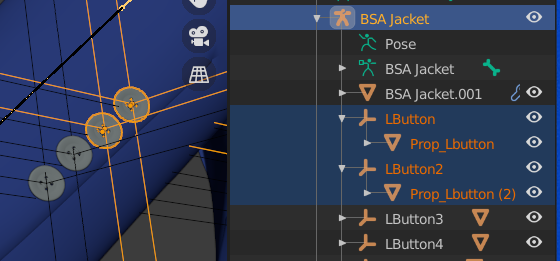
Some assets create empties that are not really useful in Blender but mostly in the way. A typical example is this jacket with buttons, where each button consists of a mesh that is parented to an empty that is parented to a bone.

The new tool removes this extra layer of empties.
Select the parent armature and press Eliminate Empties. The empties are gone and the meshes are parented directly under the bone.
Eliminate Empties can be done before or after Merge Rigs. Or not at all if you wish to keep the empties.

Other vendors implement jacket buttons as empties that are instanced to a mesh. Instanced empties are important because they show up in renders, and therefore the Eliminate Empties button does not remove them.


Import Custom JCMs

The Import Correctives button imports Joint Corrective Morphs (JCM) for the active character. The Daz Importer has a build-in list of locations where it looks for such morphs, depending on the character type. This means that it will only find the standard JCMs provided by DAZ. However, some vendors provide custom JCMs for their  character. This is especially the case for monsters that deviate significantly from the standard character that they are based upon.
The new tool Import Custom JCMs opens a file selector which allows you to navigate to the location of the custom JCMs and load those that you need. In constrast, Import Standard JCMs, which is the new name of the old Load Correctives button, displays the list of standard corrective morphs provided by DAZ for the base character.

You can also load JCMs with Import Custom Morphs. That is not really useful, however, because then the shapekeys are driven by rig properties rather than bone rotations.

Transfer correctives should work for both standard and custom JCMs, since it transfers shapekeys driven by bone rotations irrespective of their origin.

Thursday, May 21, 2020

Invoking the DAZ Importer from a script

The DAZ Importer is normally used from the UI panel, but it also possible to invoke it from a python script. To illustrate this, and to figure out how it could be done, I wrote a simple add-on which loads a duf file into Blender with specific settings, without the need for any user interaction. Add-ons for the DAZ Importer were described in an earlier blog post, but this is the first time that I actually used the add-on mechanism for something useful.

Press Refresh in the Add-Ons panel to read in a list of all available add-ons, and then enable the Sample addon for DAZ importer.
When the sample add-on is enabled, a new tab named Sample appears in the UI panel. It contains a single button named Import DAZ File, which invokes the DAZ Importer with specific arguments.
The add-on is located in the file sample-addon.py. Let us have a look at that file. The button is defined by the following code:

class SAMPLE_OT_ImportDazFile(bpy.types.Operator):
    bl_idname = "sample.import_daz_file"
    bl_label = "Import DAZ File"
    bl_description = "Import a specific duf file."
    bl_options = {'UNDO'}

    def execute(self, context):
        from ..error import getErrorMessage, setSilentMode

        # Turn off error popups
        setSilentMode(True)                
       
        bpy.ops.daz.import_daz(
            filepath = "/home/thomas/Dokument/DAZ 3D/Scenes/base8.duf",
            unitScale = 1/2.54,             # inches
            skinColor = (1, 1, 0, 1),       # yellow skin
            clothesColor = (0, 0, 1, 1),    # blue clothes
            brightenEyes = 1.5,             # brighter eyes
            fitMeshes = 'UNIQUE',           # Don't fit meshes.
            useAutoMaterials = False,       # Don't use auto shaders             handleOpaque = 'PRINCIPLED',    # Use principled node
            handleRefractive = 'PRINCIPLED',# Use principled node
            handleVolumetric = 'SSS',       # Subsurface scattering
            useEnvironment = False,         # Don't Load environment
            )

        print("Script finished")
        # The error message is the empty string if everything ok
        msg = getErrorMessage()
        print("Error message: \"%s\"" % msg)

        # Turn error popups on again 
        setSilentMode(False)                
        return {'FINISHED'}


The work is done by the operator bpy.ops.daz.import_daz, which invokes the DAZ Importer. The arguments are the same that appear to the right of the file selector when you press the Import DAZ File button.
This script loads a yellow Genesis 8 Female with blue basic wear and Tolouse hair, who is 70 inches = 5'10" tall.
If the operator encounters an error when executed the DAZ Importer displays a pop-up dialog. This is usually not desirable when it is invoked from a script, because the pop-up requires user interaction. Pop-up dialogs can be disabled by entering silent mode. In silent mode errors are only reported in the terminal window, but execution in not interrupted. The calls setSilentMode(True) and setSilentMode(False) enter and exit silent mode.

Silent mode can also be toggled on and off in the Settings panel, although it should always be off during interactive use.
You can check if the import operator encounters an error by retrieving the error message with getErrorMessage(). This function returns the empty string ("") if the operator succeeded completely, and a string starting with "ERROR" or "WARNING" otherwise.

Both setSilentMode and getErrorMessage are located in the file error.py, so you need to import them with the line

    from ..error import getErrorMessage, setSilentMode